VPN Blocked? Restore OpenVPN Access with a Tailscale Relay
TL;DR
If your work VPN times out on your current network but works from a trusted PC elsewhere, that PC can forward the VPN’s encrypted traffic for you.
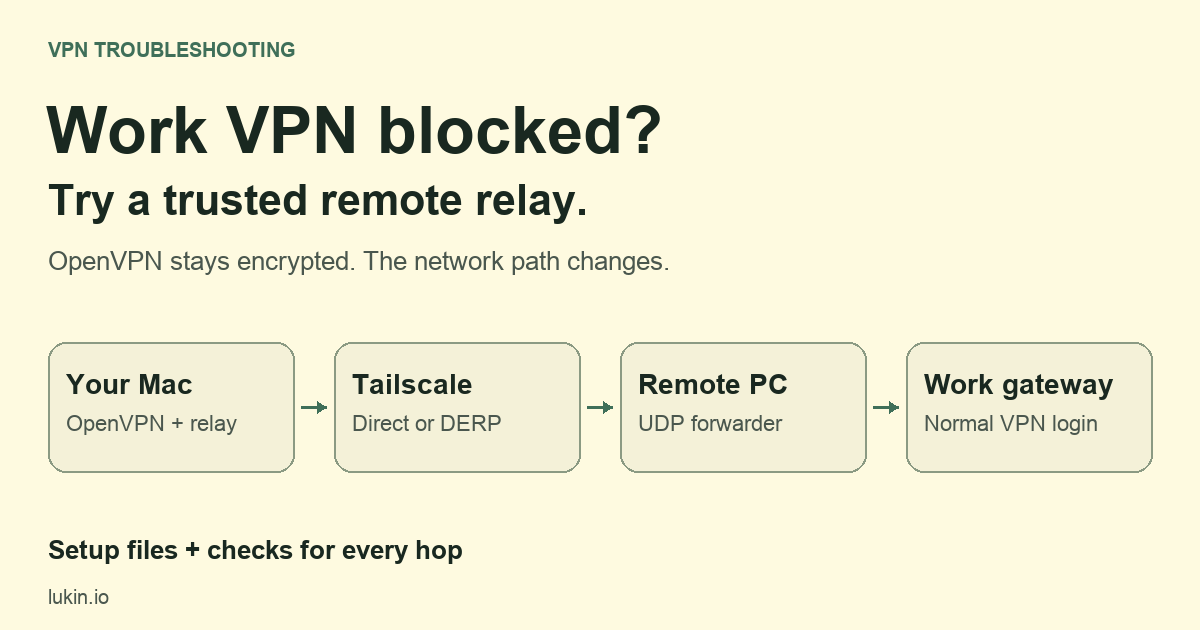
My working path became:
Mac: OpenVPN → local UDP relay
             → Tailscale → remote Windows PC: UDP relay
                         → work OpenVPN gateway
This guide includes the complete scripts, configuration, firewall setup, verification, daily commands, and fixes for the failures I encountered. It uses macOS, native Windows PowerShell, and an existing OpenVPN-over-UDP profile. No WSL installation or work VPN server change is needed.
Tailscale uses WireGuard, but it can also carry encrypted traffic through its DERP relays when a direct connection is unavailable. That alternative path worked in my case. It does not guarantee access on every restricted network.
Download the complete relay kit · Read every source file
After moving to another country, both my DEV and LIVE work VPN profiles timed out. Searching for “WireGuard blocked in your country” was a starting point, but my profiles actually used OpenVPN UDP/1194. A successful comparison from a trusted office PC in another location gave me a usable route. It did not prove nationwide blocking or deep packet inspection.
The useful result was a working connection and a way to identify which part failed the next time.
Jump to setup, daily use, or troubleshooting.
What the pieces do
| Piece | Its job |
|---|---|
| OpenVPN Connect | Authenticates to your work VPN and encrypts its traffic, using your existing profile and credentials. |
| Mac relay | Listens only on 127.0.0.1, then forwards those UDP packets to the remote PC. |
| Tailscale | Provides a private, encrypted connection between your two computers. Its private network is called a tailnet. |
| Office relay | Accepts packets only from your configured Mac and sends them only to the configured VPN gateway. |
| TeamViewer, RDP, or another remote desktop | Lets you administer the remote PC. It is not part of the VPN packet path. |
Loopback (127.0.0.1) means “this Mac.” A UDP relay forwards individual encrypted packets. DERP is Tailscale’s fallback relay when a direct peer connection is unavailable.
The relays do not log in to the work VPN or decrypt its payload. Keep the VPN profile, client private key, and password on the Mac. The remote PC needs the relay kit and gateway address.
Why can this help if WireGuard is blocked? The outer transport is different: Tailscale’s direct WireGuard path uses UDP; DERP can carry its encrypted packets over HTTPS/TCP 443. DERP cannot decrypt them. Tailscale’s coordination/relay services must still be reachable, and relayed traffic can be slower. Firewall and transport documentation, DERP.
1. Check that this approach fits your problem
You need:
- A Mac with an existing work OpenVPN profile and its normal login.
- A Windows PC in a location where that VPN gateway is reachable, with reliable internet and power.
- Permission to use that PC and connection for your work VPN.
- Tailscale installed on both computers, in the same tailnet.
- Python 3.10 or newer on the Mac; Windows PowerShell 5.1 is already included in the Windows setup used here.
- Administrator access on Windows for the narrow firewall rule.
The supplied kit forwards IPv4 UDP. It does not convert an OpenVPN TCP profile into UDP, and it is not a complete configuration guide for a standalone WireGuard client.
Check your profile without dumping its embedded keys:
awk '/^(proto|remote)[[:space:]]/ {print}' "$HOME/Downloads/work.ovpn"
A simple compatible profile looks like:
proto udp
remote vpn.example.com 1194
Use your real profile path and actual port. If it has multiple remote entries, <connection> blocks, mixed transports, or managed settings, identify the intended UDP gateway with your VPN administrator before editing it.
Before building a relay, do the cheap comparisons:
- Try the same profile on another local network, such as a phone hotspot.
- Check that the hostname resolves and that the client reaches the network stage rather than failing to load the profile.
- Confirm that the same account/profile can connect from the remote location, with the Mac session disconnected during the comparison.
- Read the client log: a local configuration error, certificate error, and authentication rejection are different from a server timeout.
A client update or a second OpenVPN client can distinguish a client problem from a path problem. Tunnelblick, for example, is another macOS OpenVPN client. Changing clients was a useful diagnostic comparison in this investigation, but it did not replace the working remote route.
If the profile fails from the remote location too, fix that failure first. A relay cannot repair an expired certificate or rejected password.
2. Install Tailscale and verify the private link
Install Tailscale on macOS and Windows from its official distribution. Sign in to the same tailnet on both devices and approve the required network extension/VPN permissions.
On the Mac, with the standalone Tailscale app:
TS="/Applications/Tailscale.app/Contents/MacOS/Tailscale"
"$TS" status
"$TS" ip -4
On Windows, in PowerShell:
& "$env:ProgramFiles\Tailscale\tailscale.exe" status
& "$env:ProgramFiles\Tailscale\tailscale.exe" ip -4
Record the Mac’s and remote PC’s Tailscale IPv4 addresses. These are the 100.x.y.z node addresses, not public IPs or home Wi-Fi addresses.
On the Mac, replace the placeholder with the remote PC’s actual Tailscale address:
OFFICE_TS_IP="REPLACE_WITH_OFFICE_TAILSCALE_IPV4"
"$TS" ping --c=3 --until-direct=false "$OFFICE_TS_IP"
A reply via DERP(region) is a working relayed path. A reply marked direct is a direct path. Tailscale’s default ping can keep trying for a direct connection; inspect the replies instead of treating “direct connection not established” as proof that no connection works. Connection types, CLI reference.
Before connecting the work VPN, record the current route to the office PC:
route -n get "$OFFICE_TS_IP"
Keep this output for comparison in step 9. Interface numbers can change after a restart.
This checks the Tailscale peer path. It does not prove that Windows allows the relay’s UDP port or that a relay process is listening.
For this setup, leave Tailscale connected but select no exit node. We also used accept-dns=false and accept-routes=false so Tailscale did not supply competing DNS or subnet routes. On a dedicated relay PC:
& "$env:ProgramFiles\Tailscale\tailscale.exe" set --accept-dns=false --accept-routes=false --exit-node=
On the Mac:
"$TS" set --accept-dns=false --accept-routes=false --exit-node=
These preferences persist. If you already depend on Tailscale DNS, subnet routes, or an exit node, record the current settings and resolve that requirement before applying this arrangement. Disconnect other full-tunnel VPNs while establishing this baseline.
If your organization manages tailnet access, it must permit the Mac to reach the remote PC’s selected UDP ports. Tailnet access and Windows Firewall are separate controls. Grants are additive: adding a narrow grant does not cancel an existing broad grant. Keep any policy changes scoped to the intended devices and review the existing policy. Tailscale grants.
3. Download the files and keep them together
Download vpn-relay-kit.zip on both computers. It contains a vpn-relay folder, including all source code and an MIT license. Review the source before running it.
On the Mac, if the ZIP is in Downloads:
unzip "$HOME/Downloads/vpn-relay-kit.zip" -d "$HOME"
cd "$HOME/vpn-relay"
python3 --version
chmod +x ./*.command
If Python is missing or older than 3.10, install a current Python macOS package and reopen Terminal. The relay uses Python’s standard library; it does not need pip install.
On Windows:
Expand-Archive -Path "$env:USERPROFILE\Downloads\vpn-relay-kit.zip" -DestinationPath "$env:USERPROFILE\Documents"
Set-Location "$env:USERPROFILE\Documents\vpn-relay"
Use a fresh destination if a folder from an older kit already exists. Do not overwrite running relay code.
After reviewing the downloaded PowerShell source, clear its downloaded-file marker from this folder:
Get-ChildItem . -Filter *.ps1 | Unblock-File
The Windows commands and launchers below use -ExecutionPolicy RemoteSigned for that one process. This permits reviewed local scripts without changing your computer’s permanent execution policy. Unblocking alone is insufficient when the default policy is Restricted. An organization’s Group Policy still takes precedence; do not override it. PowerShell execution policies.
| File | What is inside |
|---|---|
| relay-config.example.json | Address and port template. You create relay-config.json from it. |
| mac-relay.py | Local UDP forwarder and packet/error counters. |
| mac-relay-control.py | Start, stop, status, diagnosis, and explicit macOS launchd job management. |
| office-relay.ps1 | Tailscale readiness checks, restricted forwarding, and Windows diagnostics. |
| office-firewall.ps1 | Plan, add, or remove the narrow Windows firewall rule. |
relay_config.py / relay-config.ps1 |
Shared configuration validation; included beside the relay scripts. |
start-*.command / stop-*.command / check-*.command |
Mac shortcuts to the controller. |
start-office-dev.cmd / start-office-live.cmd |
Windows starters; full contents are shown below. |
check-office-relays.cmd |
Read-only checks for configured Windows relays. |
Browse the whole directory for every launcher and test. There is no private helper file to obtain separately.
4. Fill in one configuration
On the Mac:
cp relay-config.example.json relay-config.json
On Windows:
Copy-Item .\relay-config.example.json .\relay-config.json
Edit relay-config.json as plain-text JSON on both computers:
{
  "configured": false,
  "office_tailscale_ip": "CHANGE_ME_OFFICE_TAILSCALE_IPV4",
  "mac_tailscale_ip": "CHANGE_ME_MAC_TAILSCALE_IPV4",
  "profiles": {
    "DEV": {
      "gateway_ip": "192.0.2.10",
      "gateway_port": 1194,
      "office_port": 11194,
      "mac_port": 11195
    },
    "LIVE": {
      "gateway_ip": "192.0.2.20",
      "gateway_port": 1194,
      "office_port": 11196,
      "mac_port": 11197
    }
  }
}
The 192.0.2.x values are documentation examples, not working gateways. The kit deliberately rejects unconfigured examples.
Replace:
office_tailscale_ipwith the remote PC’s address from step 2.mac_tailscale_ipwith the Mac’s Tailscale address.- Each
gateway_ipwith an actual public IPv4 address of the authorized OpenVPN gateway. gateway_portif the profile uses another UDP port.configuredwithtrueafter completing those values.
Keep the local ports as shown unless they conflict with another application. They are different on purpose.
If your original profile contains a hostname, resolve it on the remote Windows PC:
Resolve-DnsName vpn.example.com -Type A
Use the actual hostname from your profile. For multiple answers, select an address confirmed to serve that profile. This kit pins that address; it does not implement discovery or automatic failover. If the provider changes its addresses, revalidate and update the configuration.
Only one work VPN? Delete the LIVE object and use the DEV launchers. The names label two independent configurations; they do not require two subscriptions or servers.
Use identical configuration values on both machines. The config contains addresses and ports, not VPN passwords or key material.
5. Allow only the intended traffic on Windows
The firewall helper is separate from the relay. Starting a relay does not silently open firewall access.
From the kit folder, inspect the proposed DEV rule:
powershell.exe -NoProfile -ExecutionPolicy RemoteSigned -File .\office-firewall.ps1 -Action Plan -Environment DEV
The rule should allow only inbound UDP on the selected office port, the remote PC’s exact Tailscale address/interface, the configured Mac source address, and the Windows PowerShell executable.
Then open PowerShell as Administrator, return to the same folder, and add it:
Set-Location "$env:USERPROFILE\Documents\vpn-relay"
powershell.exe -NoProfile -ExecutionPolicy RemoteSigned -File .\office-firewall.ps1 -Action Add -Environment DEV
For a configured LIVE profile, repeat with -Environment LIVE.
Do not add a router port-forward, bind to 0.0.0.0, disable Windows Firewall, or enable a Tailscale exit node for this guide. None is needed for this packet path.
6. Start the remote relay
Return to an ordinary, non-administrator PowerShell window:
Set-Location "$env:USERPROFILE\Documents\vpn-relay"
.\check-office-relays.cmd
.\start-office-dev.cmd
Wait for LISTENING. A printed configuration block is only a plan; it does not prove that a socket was acquired.
This is the complete start-office-dev.cmd:
@echo off
powershell.exe -NoProfile -ExecutionPolicy RemoteSigned -File "%~dp0office-relay.ps1" -Environment DEV -Action Start -RunUntilStopped
set "vpnRelayExit=%ERRORLEVEL%"
echo.
echo Relay stopped. Exit code: %vpnRelayExit%
pause
exit /b %vpnRelayExit%
And start-office-live.cmd:
@echo off
powershell.exe -NoProfile -ExecutionPolicy RemoteSigned -File "%~dp0office-relay.ps1" -Environment LIVE -Action Start -RunUntilStopped
set "vpnRelayExit=%ERRORLEVEL%"
echo.
echo Relay stopped. Exit code: %vpnRelayExit%
pause
exit /b %vpnRelayExit%
Both files are included in the ZIP. Run them in separate windows if you need both relay pairs available.
%~dp0 means “the folder containing this CMD file,” so the launcher works without a hard-coded Windows username.
Leave the relay window open. Disconnecting remote desktop does not require closing it. Keep the PC awake and online. Automatic Windows login or an unlocked desktop is not a prerequisite; those are separate remote-administration choices.
If Tailscale is still becoming ready, the script waits briefly. If it cannot acquire the expected address, it reports service/backend/address state instead of an unexplained Get-NetIPAddress exception.
7. Start the Mac relay
From the Mac kit directory:
cd "$HOME/vpn-relay"
python3 mac-relay-control.py start DEV
python3 mac-relay-control.py diagnose DEV --human
Or double-click start-dev-relay.command, followed by check-dev.command.
Expect a local listener at 127.0.0.1:11195 and until-stopped mode. For LIVE, use LIVE or its launchers; its local port is 11197.
The controller loads an explicit launchd job. An early “detached” relay still died when its parent application was force-quit. A different PID, parent PID of 1, or separate process group had not been enough. Moving ownership to launchd gave us the intended lifecycle.
The launcher window can close after a successful Mac start. The job does not automatically start at login/reboot or restart after a crash. That is separate from having no expiry timer.
If macOS asks you to review a downloaded executable file, inspect the source and use the normal system approval flow. You can also run the Python controller directly as above; no global security setting needs to be disabled.
8. Create a relay copy of your OpenVPN profile
Keep the original profile unchanged. Copy it to a clearly named local file, such as DEV-via-relay.ovpn.
For a simple UDP profile, replace its original remote line:
remote vpn.example.com 1194
with:
remote 127.0.0.1 11195
For LIVE:
remote 127.0.0.1 11197
Keep proto udp (or the original compatible UDP setting) and retain the original certificate authority, client certificate/key, tls-crypt/tls-auth settings, server-certificate verification, ciphers, routes, and DNS behavior.
Do not replace an expected server certificate name with localhost. The authenticated peer is still the real work gateway. Do not disable certificate verification to accommodate the relay. OpenVPN distinguishes the transport endpoint from certificate verification settings. OpenVPN configuration reference.
For profiles with multiple remotes or connection blocks, ensure the relay copy cannot fall back to a direct endpoint. Get an administrator-reviewed equivalent if the profile is generated or managed.
Import the copy into OpenVPN Connect. Connect only one work VPN profile at a time and enter your normal work credentials there. The office relay never needs that password.
The VPN gateway will see the remote PC’s internet source address. The relay does not change the account, certificate, or server-side authorization rules.
9. Verify useful traffic, not just “Connected”
There are three separate successes:
- Tailscale can reach the remote PC.
- OpenVPN authenticates and establishes a tunnel.
- Work traffic actually follows that tunnel and gets replies.
Check OpenVPN’s log for a successful connection and its assigned tunnel address. Then inspect routes on the Mac:
route -n get "$OFFICE_TS_IP"
route -n get REPLACE_WITH_WORK_PRIVATE_DNS_IPV4
Compare the office route with the baseline from step 2. The office Tailscale address should still use the Tailscale path. The private work DNS should use the work VPN path. On this Mac, those were two different utun interfaces. The numeric interface names can change.
Do not accidentally route the remote PC through the work VPN that depends on that PC. If the work VPN captures the Tailscale path, stop and fix that route conflict with your administrator. The exact routes depend on full versus split tunneling; adding a guessed route is not a general fix. Tailscale and other VPNs.
Get the private DNS address from the VPN’s pushed DNS settings or your administrator, and use an internal hostname you normally access. Do not guess either value. If your VPN supplies no private DNS, use a known authorized private resource for the route and traffic checks instead.
Test the private DNS server supplied by your work VPN:
WORK_DNS="REPLACE_WITH_WORK_PRIVATE_DNS_IPV4"
WORK_NAME="REPLACE_WITH_KNOWN_INTERNAL_HOSTNAME"

dig @"$WORK_DNS" "$WORK_NAME" A +time=3 +tries=1 +notcp +ignore
dig @"$WORK_DNS" "$WORK_NAME" A +time=3 +tries=1 +tcp
Expect the correct internal answer over both transports. A public DNS lookup alone does not prove access to private work resources.
Next, test a harmless, known work HTTPS endpoint:
curl --head --connect-timeout 5 --max-time 10 \
  "https://REPLACE_WITH_KNOWN_WORK_HOST/"
Use an endpoint that supports HEAD, or perform its normal read-only request. A 401/403 may establish transport reachability; successful application access is a separate check. Keep TLS verification enabled—do not add -k.
For a full-tunnel profile, an additional public HTTPS probe is useful after confirming its route:
route -n get 1.1.1.1
curl --head --connect-timeout 5 --max-time 10 https://1.1.1.1/
route -n get 1.1.1.1
If that address uses your normal internet interface, this request is not evidence about VPN forwarding. Split-tunnel users should test a destination routed through their work VPN instead.
Finally, leave the connection in use long enough to cross its ordinary authentication/credential-renewal interval. Watch for reconnects or password prompts. A five-second test does not establish reliable renewal or all-day uptime.
10. Daily use and stopping cleanly
Start in this order:
- Tailscale connected on both machines.
- Matching Windows relay reporting
LISTENING. - Matching Mac relay reporting its local listener.
- OpenVPN connected with the relay profile.
- A known private resource working.
The everyday Windows commands are:
.\start-office-dev.cmd
.\start-office-live.cmd
The Mac starters are start-dev-relay.command and start-live-relay.command. Both relay pairs can run; connect only the work VPN you need.
The eight-hour trap: an old command containing -MaxMinutes 480 explicitly requests an eight-hour limit. The supplied daily starters pass -RunUntilStopped. The Windows script’s direct bounded mode remains available for tests; use the starters for everyday work. On the Mac, omitting --seconds means no scheduled expiry.
To stop DEV:
- Disconnect DEV in OpenVPN.
- On the Mac, run
python3 mac-relay-control.py stop DEVorstop-dev-relay.command. - In the DEV office relay window, press Ctrl+C and confirm that it actually stopped.
Use the equivalent LIVE commands for LIVE. If remote-desktop keyboard shortcuts are not forwarded correctly, verify the process/window state rather than assuming the shortcut worked.
After a reboot, start the relay processes again. “Run until stopped” removes a timer; it does not make a laptop stay awake, keep a PC powered on, or install a background service.
Troubleshooting: find the first broken link
On the Mac:
cd "$HOME/vpn-relay"
python3 mac-relay-control.py diagnose DEV --human
On Windows, from the kit folder:
.\check-office-relays.cmd
Use LIVE for the corresponding Mac diagnosis. The Mac output includes current process/listener state, log paths, and a suggested next action. Windows writes timestamped relay events to the log path printed at startup. Neither check confuses “Tailscale says online” with “the work VPN is usable.”
| Symptom | What to check | What to do next |
|---|---|---|
| OpenVPN times out, but Tailscale and the remote PC are online | Check the current Mac job, loopback listener, and latest stop/error log, especially after a reboot. | Start the missing Mac relay. Until-stopped mode does not provide reboot autostart. |
Get-NetIPAddress cannot find the expected IP |
Tailscale service/backend state, tailscale ip -4, and Windows interface addresses. |
Wait for readiness, sign in if needed, or correct a changed node address. The exception alone does not distinguish those causes. |
| Port already occupied | Read the current socket owner’s PID and address. | Keep the correct existing relay or stop it deliberately. Do not launch duplicates or kill an old PID copied from notes. |
| Tailscale ping replies, office counters stay at zero | Configured source/destination IPs and ports, Windows rule, and tailnet policy. | Fix the UDP access path. Tailscale’s own ping does not test the application’s UDP listener. |
| Office sent packets, but no gateway replies | Correct gateway IPv4/UDP port and reachability from the office network. | Revalidate the destination and server status. A pinned IP can become stale. |
| Gateway replies arrive, but OpenVPN cannot connect | Relay return counters, then OpenVPN TLS/authentication logs. | Diagnose the client/server error at the stage it reports. |
| “Authentication failed” | Correct profile, username, password, keyboard layout, and server policy. | Correct the login. Transport has progressed further than a silent timeout. |
Windows receive error 10054 |
The reported operation and side. | The kit records and tolerates this specific receive-stage reset. Do not extend that handler to unrelated errors. |
| Upstream send says “An invalid argument was supplied” | Save the timestamp, stage, numeric code, endpoints, and packet length from the new log. | Restart after checking configuration, then investigate recurrence. The original cause remains unresolved. |
Mac relay stops with upstream_send errno=49 |
Preserve the log and check the current local Tailscale address and route. | Verify the Tailscale path is usable, then restart the stopped relay through its controller. This error alone does not identify the triggering event. |
| Connected label, unusable work apps | Routes, private DNS over UDP/TCP, and a real work endpoint. | Fix the failed layer; the label alone is insufficient. |
| Works until a later password/renewal prompt | Client authentication settings and server renewal policy. | Remove temporary diagnostic overrides you introduced; preserve organization requirements. |
| Stops after closing a terminal or controlling app | Which process owns the relay and how it was started. | Use the Mac controller/launchers; leave the Windows relay window running. |
The failure that looked like blocking—but was a timer
One later outage was particularly misleading. The office PC was online, its relay was running, and OpenVPN kept timing out.
The Mac relay log showed:
STOPPED reason=time_limit elapsed_s=28800.1
28,800 seconds is eight hours. The process had exited normally; no program was left to forward OpenVPN’s loopback traffic.
Restarting the Mac relay restored authentication and useful traffic. We then changed everyday operation to run until stopped on both ends, with explicit bounded modes retained for diagnostics.
The old Mac timer used a monotonic clock that excluded system sleep. A displayed wall-clock expiry was only an estimate. The terminal log event and missing listener were stronger evidence than a predicted time.
November 12: Tailscale connected, Mac relays absent
The next incident had a different cause. Both Tailscale devices appeared online and a live probe received a DERP reply, but neither Mac relay job was loaded and neither local UDP listener existed. The previous DEV process had ended on a signal before a recorded Mac boot; the signal’s sender was not established. Removing the timer had not installed reboot autostart.
Restarting the Mac relays restored DEV authentication. Route checks, private DNS over UDP/TCP, and certificate-verified HTTPS then passed. No office-PC restart or relay change was needed. LIVE’s local relay was restarted, but its VPN authentication and traffic were not retested that day.
For the same missing-listener case:
- Keep Tailscale connected on both machines and confirm that the matching office relay reports
LISTENING. - Disconnect the affected OpenVPN profile. From the Mac kit folder, preserve the diagnosis and its reported log paths:
cd "$HOME/vpn-relay"
python3 mac-relay-control.py diagnose DEV --human
- If there is no running managed relay and no conflicting socket owner, start it and check again:
python3 mac-relay-control.py start DEV
python3 mac-relay-control.py diagnose DEV --human
- Confirm that the managed job owns its expected local listener. Use
LIVEinstead for that environment; do not launch duplicate processes. - Reconnect OpenVPN and repeat the route, DNS, and HTTPS checks in step 9. A local listener proves only the local relay is ready.
A separate earlier LIVE run had stopped at upstream_send errno=49, which this Mac mapped to EADDRNOTAVAIL: the requested local address was unavailable. It occurred after sleep/resume, but we did not establish what triggered it. Preserve the error, verify the current Tailscale path, and restart the stopped relay; do not treat it as a password error or proof of filtering. Apple’s error definition.
Windows UDP resets need narrow handling
Windows can report WSAECONNRESET/10054 during UDP receive following an ICMP Port Unreachable response to an earlier send. That does not mean a TCP-style connection was established and then closed. Microsoft UDP receive documentation.
We limited recovery to that known receive error and counted it. Other errors remain visible with their operation and numeric code. The earlier upstream-send failure was different; restarting restored service, but that did not prove its cause fixed.
Silently catching every exception would have recreated the original problem: a script that appears alive while traffic is broken.
Avoid adding unrelated changes
Slack Huddles also failed on one of the networks, while browser-based Google Meet worked. That was a clue about different network paths, not proof of the VPN’s cause. Speaker tests could not establish whether UDP/1194 reached the work gateway.
Likewise, weakening OpenVPN’s security setting did not become the solution. Preserve the cryptographic settings required by the work server and diagnose transport separately.
What was actually verified
On the original Mac/Windows setup, both DEV and LIVE authenticated through the remote relay. After the timer change, both passed:
- private DNS queries over UDP and TCP;
- HTTPS with certificate verification enabled;
- route checks before and after the probes;
- forwarding in both directions, with DEV restored as the active session afterward.
A separate Tailscale probe returned through DERP. That establishes a working relayed connection at that time, not a diagnosis of the country’s filtering equipment.
The downloadable kit is a sanitized, configurable adaptation of those scripts. Its checks and tests are documented in README.txt. The real-session results above belong to the original configured deployment; they do not substitute for checking your addresses, firewall, routes, authentication, and resources.
No new all-day soak test or credential-renewal test was performed after the final runtime change. Automatic restart after reboot/crash and gateway failover are not included.
What if Tailscale cannot connect either?
First distinguish sign-in/extension setup from a network failure. If the private link itself cannot work, these UDP relays have no transport to use.
An alternative worth evaluating is wstunnel, which can carry UDP through a WebSocket/HTTP-based tunnel. It requires a reachable server counterpart and a reviewed TLS/access configuration. Installing only its client on the Mac is not a complete solution.
We did not need to deploy wstunnel once the Tailscale path worked, so it is not presented as a tested drop-in replacement. Likewise, simply changing an OpenVPN profile to TCP/443 works only if the server actually offers that transport.
Remove the setup when you no longer need it
Disconnect the work VPN and stop both sides of each relay first. The Mac controller’s stop command unloads its job.
Then, in administrator PowerShell from the Windows kit folder:
powershell.exe -NoProfile -ExecutionPolicy RemoteSigned -File .\office-firewall.ps1 -Action Remove -Environment DEV
powershell.exe -NoProfile -ExecutionPolicy RemoteSigned -File .\office-firewall.ps1 -Action Remove -Environment LIVE
Run the LIVE command only if you configured it. Remove the relay copies of the OpenVPN profiles, retaining your originals. Restore any recorded Tailscale preferences you changed; disconnect or remove the devices from your tailnet if that private link is no longer needed.
The practical lesson is to check the whole chain in order: local relay → private link → remote relay → VPN authentication → work traffic. An online remote PC tells you about one piece. A working, verified route tells you considerably more.